 Digital Commons Help Center
How Can We Help?
About the Collections PageAbout the Collections Page
The Collections page, also known as the communities.html page, works as a sitemap for the overall repository. It can be accessed through the Collections link in the repository sidebar and also typically via a “Research unit, center, or department” or similar link on the homepage.
Page Display
By default, the Collections page will display in a collapsed position showing only top-level structures. Communities display a “+” sign indicating they can expand to show the sub-communities and/or publication structures grouped underneath with the structure grouping tool. Publications that are not grouped into top-level communities will display on their own in the list, without a “+” sign next to them.
To show nested structures, click the Expand All button to show up to three nested levels, which include top-level communities, sub-communities, and publication structures (read more about communities and structure types). The button changes to Collapse All.
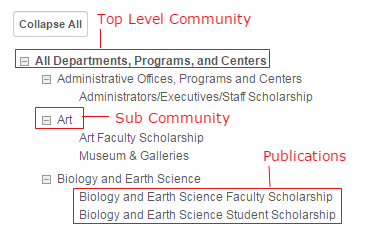
You can change the default display of the Collections page to the expanded version. On your repository’s Configuration screen, scroll to the Collections Page settings under Site-Level Pages. Check the box next to Expand Collections page list. Click Publish saved changes (previously labeled Update site) to queue an update to display the new changes.
Modify Page Introductory Text
Introductory text appears at the top of the page. The text can be changed in the site-level configurations using the Customize intro text on the Collections page setting, then selecting Publish saved changes.

Exclude Structures from the Page
All repository structures are included on the page unless the Exclude [structure type] from Collections page option is checked in a structure’s configurations. Excluding a community will also exclude any structures grouped within that community, regardless of their individual settings.
Select Publish saved changes at the site level after making any changes to ensure the display is current.

Hidden structures are automatically excluded from the Collections page.
Show Nesting Changes on the Collections Page
When a new structure is grouped to a community with the structure grouping tool, using the Publish saved changes link at the community level makes sure that the community displays a link to the structure. The site level also needs to be updated so the structure appears in the correct position under that community on the Collections page. To incorporate new changes on the page, select Publish saved changes in the site Configuration sidebar.