 Digital Commons Help Center
How Can We Help?
Image GalleriesImage Galleries
This guide shows administrators how to upload, manage, and display images in a Digital Commons image gallery. It also explains gallery settings, author submissions, and how to use gallery images in slideshows and content carousels elsewhere on the site.
Get Started
Quick reference for common image gallery tasks.
| Task | Steps |
|---|---|
| Request a New Image Gallery | Contact Consulting Services with the gallery title, desired URL label, and any specific metadata needs. See What to include in your request for a new structure for more details. |
| Upload Image | Click the Add Content tab available from the Configuration or Manage Images pages. Alternatively, administrators can use the Submit Research link in the gallery sidebar, which creators may also use. |
| Post Image | Post images immediately by selecting Publish & Update Selected at the bottom of the submission confirmation screen. To post later, use the Post option on the Image Details page (accessible from Manage Images). |
| Import Images | Add multiple images at a time using the Batch Upload tools. |
| Update Gallery | Click Update ir_gallery in the sidebar of the Configuration page or Manage Images page to show newly posted images, revisions, or settings changes in the gallery. |
Browsing the Gallery
Image galleries display a grid of thumbnail images by default:

Visitors can click the Switch View to List link to change to a list view that displays thumbnails and titles (and other metadata upon request).
Visitors can also open a slideshow by clicking View Slideshow.
Gallery Settings
Administrators can adjust the default gallery display and add introductory text using the settings on the image gallery Configuration page. For how to access this page, see Digital Commons Administrator Configurations.
After making configuration changes, click Submit Changes and then Update ir_gallery to show the changes in the gallery.
| Setting | Description |
|---|---|
| Display Thumbnails as a List | To change the default gallery display from a grid to a list, select the Display thumbnails as a list setting. Visitors will still be able to toggle between grid and list. |
| Set the Number of Thumbnails per Page | The default is eight (8) thumbnails per gallery page. To change this, enter the desired number in the Number of thumbnails to display on each page setting. If the gallery has multiple pages, page navigation buttons appear below the thumbnails. |
Add Introductory Text or a Gallery Logo |
To provide a gallery description to visitors, use the Introductory Text settings on the Configuration page to enter or paste text. You may also format the text with HTML. Use the Gallery Logo settings to display a logo/image above, next to, or instead of the introductory text. |
| Show the Submit Form Link | A Submit Research link appears in the gallery sidebar by default for authors/creators to submit images. To hide this option from potential authors, uncheck the Show link to submit form box on the Configuration page. |
Gallery Map in the Sidebar
The sidebar on the image gallery homepage displays a map with image locations when images include geolocation metadata.

To add an image to the map, use the Geolocate This Image field on the submission form as described below under “Upload Images.” You can also add this information in bulk with batch upload or revise using the latitude and longitude columns in the batch spreadsheet.
If the Geolocate This Image metadata field does not appear in your gallery and you wish to add it, please contact Consulting Services.
Image Page Display
Individual image pages feature an interactive viewer with pan-and-zoom tools and a full-page view option. A navigation pane in the upper left allows visitors to control the viewing area on zoomed-in images.
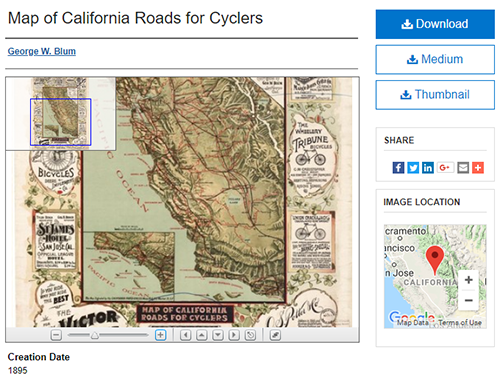
The Download button provides access to the original image file. The system also creates two other versions for download: a medium-sized image and a thumbnail image (the thumbnail is also used on the main gallery page).
If the image includes location information (in the Geolocate field), a map with a location marker appears in the image page sidebar.
Upload Images
Administrators can upload individual images to an image gallery using the steps below. You can upload multiple images at once using the batch import feature (available to administrators with batch permissions).
To upload an image as an administrator:
- Navigate to the Add Content tab and click Start uploading images. (Administrators added at the gallery level also have a gallery-specific Upload shortcut on their My Account page.)

- Complete the required fields on the submission form (Title, Creator, and Creation Date), along with any other fields for which you have data.
- To add the image to the gallery homepage's sidebar map and display a location map in the image page sidebar, use the Geolocate field. Enter an address, description, or longitude/latitude (separated by space or comma) and click Search Map to verify the location.
- To capture additional metadata or to remove/hide options, contact Consulting Services to request changes.
- Upload the original, high-resolution version of an image (TIFF, JPEG, BMP, PNG, or GIF accepted) in the Upload File section.
- Click Submit. The image has now been submitted but is not yet posted to the site.
- On the confirmation page, administrators can review or revise the submission, make another submission, or publish the image using Publish & Update Selected. This posts all checked images in the Publishing Queue and updates the gallery. The checklist includes the newly uploaded image and any previously uploaded, unpublished images.
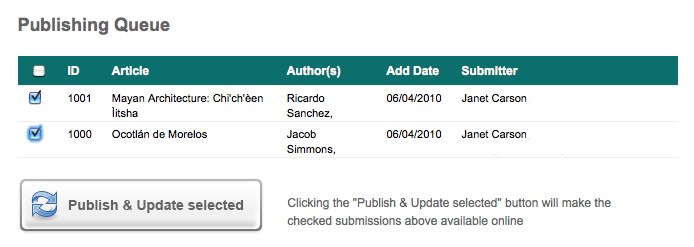
- To post later instead, you can use the Post option in Manage Images at any time (see the “Manage Images” section below).
Allow Author Submissions
A Submit Research link in the gallery sidebar appears by default to accept submissions from authors/creators.
- The Submit Research link may be hidden when needed by unchecking the Show link to submit form option on the gallery Configuration page.
- To customize the link text, please contact Consulting Services.
- When submitting images, authors must accept a submission agreement before reaching the submit form. Agreement text is customizable by administrators on the gallery Configuration page or with assistance from Consulting Services. Administrators do not see an agreement.
- Images appear on the site only after an administrator posts them and updates the gallery.
Authors can refer to Author Submission Steps in Digital Commons for information about submitting works, including to image galleries.
Manage Images
The Manage Images tab contains all of the images that have been uploaded to the gallery. The default screen shows items that are in the Not yet posted state, including unposted author submissions and administrator uploads.
- Use the State menu to switch to viewing All items, Posted items, or Queued items (posted but awaiting an update to publish).
- You can also filter by field and click Search to view filtered results.

Click the title of an image in the list to view its Image Details page, where administrators may review the image’s metadata, download the full-size image, and find additional links to help with submission management.

Post an Image
Administrators can use the Post sidebar link on the Image Details page to post a previously submitted image at any time.
- Reach the Image Details page by clicking the image title on the Manage Images tab. (You can also click Edit Image on the administrator toolbar while viewing the published image page.)
- Click the Post sidebar link.
- Click Continue.
- Click the Update button to publish the image to the gallery. Updating will publish all images posted since the last update, so it is only necessary to update once when posting multiple images.
To post immediately after upload, use the Publish & Update Selected option that is built into the submission confirmation screen (described above under “Upload Images”).
Revise an Image
- On the Image Details page, click the Revise Image sidebar link.
- Enter any edits on the revision form. You can include a reason for the update at the bottom if useful to your workflow.
- Click Submit.
- If the image was previously posted, click the Update ir_gallery link in the gallery sidebar to show your edits on the published image page.
Display a Slideshow or Content Carousel in the Repository
Images in an image gallery can appear in a slideshow or content carousel (images plus titles) elsewhere on your site.
Slideshow:

A content carousel includes images plus key metadata:

The Configuration page in every publication structure and community has settings to display a slideshow or content carousel from an image gallery. See Displaying Logos, Images, and Slideshows on Your Site for instructions. To add a slideshow or content carousel to your site homepage, or to add custom links for individual images, please contact Consulting Services.
Collect Images from Other Galleries
Collecting lets you display an image from one gallery inside another gallery without duplicating it. This is ideal if you would like to, for example:
- Present an image both in a gallery that includes all images from a given department and in a gallery dedicated to a certain subject area.
- Showcase campus history in one gallery and incorporate historical buildings from a separate campus architecture gallery.
- Highlight winning pieces from an art contest gallery.
Image galleries include a visual collection tool to aid this process. To learn more about collecting content between other publication types in Digital Commons, or about automating the collection process based on configured fields, see The Collection Tool: How to Display Submissions in Multiple Publications.
To collect a posted image to an additional gallery:
- In the gallery where you’d like to feature an image posted to a different gallery, go to the Manage Images tab.
- Click Collect Images in the sidebar. (Alternatively, go to the Add Content tab and click Start image search.)
- In the Find Images box, enter a search term to locate the desired image(s). To restrict the search to specific fields, check the box next to the corresponding metadata type(s). Use the Search menu at the bottom of the form to search all galleries or just a specific one. Click the Search button.
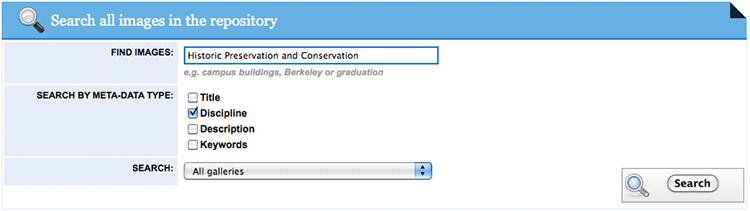
- In the search results, click the Add button below one or more images to add them to the gallery.
- Click Collect Images.
- Click the Update ir_gallery link in the sidebar to make the collected images visible in the gallery.
To remove a collected image from a gallery:
Images added to the gallery via the Collect Images feature above do not appear in the main Manage Images list.
- To remove collected images, click the Manage Collection link in the Manage Images sidebar to display the collected images.
- Click Remove under any images you would like to remove from the gallery. (This does not change or delete the image in its original gallery.)
- Click Remove Images at the bottom of the screen.
- Click the Update ir_gallery link in the sidebar to make your changes visible on the site.
Frequently Asked Questions
Which image files does the system support?
All popular image file types including TIFF, JPEG, BMP, PNG, and GIF.
How large of an image can you upload into the system?
There is no hard system limit; however, visitors may have trouble downloading files larger than 20–100 MB, depending on their browser and connection speed.
How does Digital Commons handle metadata embedded in photographs?
Digital Commons cannot embed metadata into images, nor does it read or extract metadata that is already embedded in images. To include embedded metadata, see if you can export the metadata to Excel or XML. If so, you should be able to use batch upload or revise to add that metadata to gallery metadata fields.
Can I restrict access to image galleries?
Access control will prevent unauthorized visitors from downloading the original image (via the main Download button) or seeing the pan-and-zoom viewer. All visitors will continue to see the thumbnail and medium-sized preview images that are created by the system. If desired, you can display Creative Commons licenses to restrict usage of the thumbnail and medium-sized images. Contact Consulting Services if you'd like to add a Creative Commons field.
Do all three file sizes trigger download counts?
Only the “original” size photo available via the main Download button will trigger a download count.
How can I hide the keywords below the download buttons?
On the image gallery Configuration page, check the box next to Do not display Keywords below download buttons to hide the keywords section on image pages. Click Submit Changes and then Update ir_gallery in the sidebar.
How can I display images on external sites?
Every image gallery in Digital Commons has an RSS feed available from the Notify me via email or RSS sidebar link. External websites such as library, conference, or departmental webpages can use RSS feeds to display images posted in Digital Commons.