 Digital Commons Help Center
How Can We Help?
Digital Commons Administrator ConfigurationsDigital Commons Administrator Configurations
Digital Commons administrators have access to a simple interface for managing basic functions of the repository. The Configuration page provides the ability to display custom text and links, adjust how submissions are organized, oversee lists of featured content, and include image slideshows. Publication workflow is also under control, including designating who can submit.
This guide introduces the configurations at the site and community levels, and it highlights the configurations that are common across most publication structures. For settings that are unique to specific publication structure types (such as issue settings in journals), please refer to our publication-specific guides under Managing Submissions & Publishing.
Access the Configuration Page
From the My Account page:
Look under the Site Administration Tools heading on your My Account page. Click the URL of your repository to access the site-level Configuration page.

If you are an administrator of a specific series or other publication structure, you will see a Configuration link in the administrator tools for that structure on your My Account page.

Site administrators can access administrator tools for all publication structures from their site-level Configuration page (see below).
From the Administrator Toolbar:
When logged onto a Digital Commons repository as an administrator, you can use the Administrator Toolbar to quickly access configuration and editorial tools for your site, publications, and articles. Located at the top of the screen, this toolbar allows you to jump to the back end of the site to make changes with a single click.
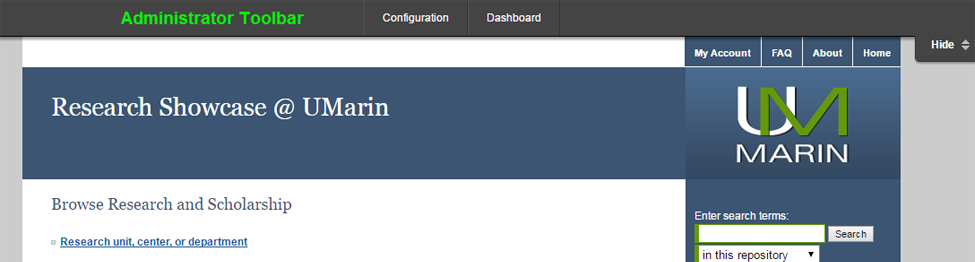
The Administrator Toolbar options will change based on the context you are viewing, to show relevant links for that particular level of the site. You may hide the toolbar from the screen at any time by clicking the “Hide/Show” toggle tab.
Navigate the Site Configuration Page
The top of the site Configuration page includes a Site index that lists every community and publication structure, grouped by type: Communities, Journals, ETDs, Galleries, Series, Books, and Conferences. Each is listed by its label, which is also visible at the tail end of its URL (e.g., “economicsdept” is the label for the community at http://site.example.edu/economicsdept).
Click a link in the list to access configuration options for a particular community or publication. Alternatively, you may type the label or title of the publication into the Jump to publication search box.

The navigation URL at the top of the page changes if you navigate to a community, publication, volume, issue, or other level. At any point, you may use the navigation URL to switch to a higher level.
The tabs at the top of the page (Dashboard, Configuration, and My account) and the menu on the left are available at every level. The left menu is organized into three sections: Settings (Manage permissions), Grouping (Content collecting tool and Structure grouping tool), and Actions (Preview changes, Publish saved changes, and View published site). On publications, you will also see a Manage tab for the structure’s content (for example, Manage events or Manage images) and a Mailing lists tab.
To view site-level configurations, scroll down below the Site Configurations heading.

List of Configurations by Level
Unless otherwise stated, changes to the configuration options at the site, community, or publication level will not override configuration options set elsewhere in the repository.
Site-level configurations
Below are details for the Configuration options available at the top level of a Digital Commons repository. To change sidebar links at the site level, please send requests to Consulting Services.
Search Engine Optimization
- Descriptive Page Title controls the display of the repository title in search engine results and along the title bar of the web browser. The site title is used by default.
- Search Description allows you to enter a keyword-rich description of your repository to suggest what displays in search engine results.

For more information about utilizing the above configurations, please read Search Engine Optimization: Features and Best Practices.
Homepage Image
The Digital Commons homepage can accommodate a full-width image in the main content area. Upload a PNG or JPG image file that is at least 740 pixels wide to fit the space available.
Readership Map
- Add Readership Map to homepage: Choose to display a Readership Activity Map at the top, middle, or bottom of the repository homepage.
- Time frame used for map playback: The map will show downloads occurring across the repository in real-time when in Live mode, or recent historical downloads when using one of the other playback options. Best Fit mode will automatically select the most appropriate option.
- Readership Map color scheme: Several color schemes are available for the Readership Activity Map, or leave the setting on “Default” to display a basic topographical map. To request a specific color not present in the list provided, please contact Consulting Services.
- Institution city, Institution state or region, Institution country, and Institution country code: These settings display your institution’s location at the top of the map’s placeholder card before any pins drop. Spell out the city, state or region, and country (for example, “United States”). Enter the two-letter ISO country code in lowercase (for example, “us”) so that the correct country flag displays. See the list of ISO 3166-1 alpha-2 country codes.
Find more information in the Readership Activity Map guide.
Article Page Metrics
- Hide Article Download Count: Download counts display on article information pages by default once a full text has been downloaded 10 times. Check this box to hide the download count widget across the repository. This setting can also be adjusted at the publication level.
- Hide PlumX Metrics: PlumX Metrics display on article information pages by default once an item has at least one metric. Check this box to hide the PlumX Metrics widget across the repository. This setting can also be adjusted at the publication level. For more details about this feature, see Measuring Impact with PlumX Metrics in Digital Commons.
New Paper of the Day URL
On the Digital Commons homepage, the Paper of the Day displays a randomly selected work from the repository each day. You can override the random selection and feature a published work of your choice by entering the URL to its information page in this field. For your changes to take effect, please ensure that there are no trailing spaces after the URL.
Privacy Policy URL
You may enter a URL here if you’d like the Privacy link on your repository to go to your institution’s privacy policy.
Homepage Introductory Text
This text box shows the introductory text appearing on the site’s homepage and allows you to make changes. Use HTML if text formatting or multiple paragraphs are desired.
Sidebar Links
Consulting Services can make site-level sidebar link changes upon request. Sidebar link configurations are not available at the site level (though these are available in communities and publications for adding collection-specific links).
About and FAQ Pages
These configurations provide a space to edit text appearing on the site’s main information pages. Use HTML if text formatting or multiple paragraphs are desired.
Collections Page
Intro text may be added to display above the list of repository collections (communities.html) page. Use HTML for text formatting or multiple paragraphs. A checkbox is also provided for changing the default view from a collapsed site tree to a fully expanded hierarchy of up to three nested levels.
Featured Page
The featured.html page displays publications that have their “Featured publication” configuration enabled (see Publication-Level Configurations below for details). Use this site-level configuration to add introductory text to the page, if desired. To display a simple list of publications, check the box next to “Turn off graphical browsing on featured.html”; this will prevent each publication’s intro text and image from also appearing.
If you do not see a link to the Featured Publications page on your repository homepage and would like to enable one, please contact Consulting Services.
Peer Reviewed Page
The peer_review_list.html page showcases the site’s peer-reviewed journals and series. The configuration options allow the addition of intro text to the page, as well as the ability to turn off graphical browsing. To display a simple list of publications, check the box to prevent each publication’s intro text and logo from also appearing. Series appear on this page when the Peer-reviewed publication setting is selected or when peer review settings are entered for the series.
Submit Research Page
Use this text area if you wish to modify the introductory text at the top of the Submit Research page. Find more details on this page in About the Site-Level Submit Research Page.
Enable PDF Accessibility Checker
Select the structure types to check: ETD, Series, Book, Journal, and Event Community. New submissions to the selected structures are automatically checked against WCAG 2.1 AA and PDF/UA standards, and a summary report is attached to the submission record. A report is also emailed to authors when they submit their own work. The report confirms that the file was reviewed for accessibility; it does not certify full compliance. Individual publications can override this setting. See PDF Accessibility Checker: Enable and View Reports.
Monthly Author Readership Report
To add an announcement to the monthly download reports sent to authors, enter a Title of announcement and Text of announcement. You can also add an Optional link URL, which appears after the text. If you enter a link URL, a Link label is required. The text of the announcement is reset monthly and should be updated each month that custom text is desired.
Transcoding Notifications
The setting available here allows you to turn off the transcoding email notifications generated for native streaming files. These emails are sent to the submitter to confirm that the transcoding process is complete or to provide any errors.
If emails are turned off, administrators may access this information on each publication structure’s Transcoding Status page, which shows information for files uploaded within the past 90 days. For more details, see Streaming Video, Audio, and Other Media.
Community-level configurations
Community title
The title displays at the top of the community page, on the repository’s communities.html page, and anywhere references to the community are made, apart from the Breadcrumb Label described below.
Breadcrumb label
Enter a shortened community name for use in the breadcrumb display. If left blank, the community’s URL label will be used by default. The breadcrumb navigation is located at the top of each community, nested series, or article page. This is used to provide a trail for the user to navigate back through each parent page. A typical breadcrumb looks like this:
Home > Engineering > Bioengineering > Dissertations
The “Engineering” community in this example may actually have the longer Community Title of “School of Engineering," but to conserve space “Engineering” is entered as its label for the breadcrumb.
Introductory text
This field allows you to enter introductory text for the community. Basic HTML text formatting is supported. If you are not familiar with HTML coding and wish to format text or multiple paragraphs, please contact Consulting Services for assistance.
Is this an Academic Department or Program?
This setting can be used to mark a community as an academic department page. With this feature it is possible for Consulting Services to create a custom page to aggregate all of your academic departments. If interested, please contact Consulting Services as additional setup may be required.
Department Chair
If the community has a Department Chair you may enter their name here for display above the introductory text. You can also include an alternative label if the title differs from Department Chair.
Descriptive Page Title
Use this field to control the display of the community title in search engine results and along the title bar of the web browser.
Hide this community on the repository
Selecting this option will prevent the community from being included in any automatically generated lists on the site. However, if a user has the community bookmarked or enters the exact URL, they will still be able to access the page.
This setting prevents the community from being updated. Further changes will not be displayed until the community is un-hidden and updated.
Exclude community from Collections page
This setting prevents the community and structures grouped under it from appearing on the site’s main Collections page, communities.html.
Exclude community from Submit Research page
This setting prevents the community and the structures grouped under it from appearing on submit_research.html, the site’s list of publications that visitors can submit to.
Extra sidebar link URL and display label
A link to the department or program’s official homepage, or other related webpage, may be included here. This link will appear in the sidebar with the label you enter. If no text is provided here, the link label will use the breadcrumb label (if available) or the Community title, followed by “Website.”
Community Logo
Upload a GIF, JPG, or PNG image file to display on the community page. Enter a logo width of up to 640 pixels. If you leave the height blank, it scales automatically in proportion to the width. Logo options include:
- Show logo only and hide community title: Best for logos wider than 440 pixels.
- Community logo and title are stacked: Recommended if you display both the title and the logo, and the logo is over 350 pixels wide.
- Display logo in this community only: Prevents publications and communities within this community from inheriting the logo.
- Do not inherit parent community logo: If this community is in another community that has a logo, this community does not use that logo.
- Logo link: Enter a URL to make the logo a linked image.
Content Carousel or Image Slideshow
The community page can display either a slideshow with images only or a content carousel with images and metadata. To add one of these, enter the URL of a Digital Commons image gallery URL followed by /gallery.rss (example: http://scholarworks.repository.edu/sample_gallery/gallery.rss).
Select the “Make Slideshow a Content Carousel” option to enable a content carousel instead of a slideshow.
Maximum width and height are required values for slideshows.
Readership Map
- Add Readership Map to homepage: Choose to display a Readership Activity Map at the top, middle, or bottom of the community page.
- Time frame used for map playback: The map will show downloads occurring within the community in real-time when in Live mode, or recent historical downloads when using one of the other playback options. Best Fit mode will automatically select the most appropriate option.
- Readership Map color scheme: Several color schemes are available for the Readership Activity Map, or leave the setting on “Default” to display a basic topographical map. To request a specific color not present in the list provided, please contact Consulting Services.
Find more information in the Readership Activity Map guide.
Publication-level configurations
The following is a list of the default configuration options available at the publication structure level (in series, journals, etc.). Additional configurations may exist in the type of structure you are working with. For a review of each publication structure type and its unique configuration options, see publication-specific guides in Managing Submissions & Publishing.
Settings vary by structure type. Image galleries accept image files only, so settings for PDFs and video streaming do not apply to them. Journals also differ in a few places, noted below.
Title
The title is used at the top of the series, gallery, or other publication page. It also appears in automated emails, on the site’s communities.html page, and anywhere references to the series are made apart from the breadcrumb label described below.
Breadcrumb label
Enter a shortened publication name for use in the breadcrumb display. If left blank, the publication’s URL label will be used by default. The breadcrumb navigation is located at the top of each community, series, or article page. This is used to provide a trail for the user to navigate back through each parent page. A typical breadcrumb looks like this:
Home > Engineering > Bioengineering > Faculty Publications
The “Faculty Publications” series in this example may actually have the longer Series Title of “Bioengineering Faculty Publications," but to conserve space “Faculty Publications” is entered as its label for the breadcrumb.
Introductory text
Here you may add text to appear on the publication homepage above the article list. It is useful for providing context for visitors or additional information about the contents of the series or other publication. If you wish to format the text and are not familiar with HTML coding, please contact Consulting Services for assistance.
Search Engine Optimization
- Descriptive page title: Controls the display of the publication title in search engine results and along the title bar of the web browser.
- Search description: Use this field to enter a keyword-rich description of your series, gallery, or other publication to suggest what displays in search engine results.
Hide this publication on the repository
Selecting this option prevents the publication from being listed in any automatically generated lists on the site.
Hidden publications cannot be updated, and further articles will not be published. Be sure to un-hide the series when you are ready to post new content. Hidden pages are still available to users who enter the exact URL.
The option to hide an individual article is available by clicking the article number link on the publication configuration screen, then selecting Hide this article so that it’s not displayed on the site in the article’s configurations.
Exclude from Collections page
This setting prevents the publication from appearing on the site’s main Collections page, communities.html.
Exclude from Submit Research page
This setting prevents the publication structure from appearing on submit_research.html, the site’s list of publications that visitors can submit to.
Exclude content from featured item lists
Prevent content from appearing in Top 10 Downloads, Paper of the Day, and Recent Additions at the site level.
Featured publication
Use this configuration to include the publication on the site’s Featured Publications (featured.html) page. Include an image to accompany the publication listing, if desired.
Extra sidebar link URL and display label: A link to the department or program’s official homepage, or other related webpage, may be included here. This link will appear in the sidebar with the label you enter. If no text is provided here, the link label will use the breadcrumb label (if available) or the publication title, followed by “Website.” This setting is not available in journals. Journal sidebar links beyond the built-in links to journal information pages are set up with Consulting Services.
Add link to submit form (all structures besides journals)
When this checkbox is selected, visitors to the publication structure can access the submission form via a sidebar link. If the submission link is not present, all content for the structure will need to be loaded into the system by an administrator.
Publications with this setting enabled will also have a link to the submit form appear on the site-level Submit Research (submit_research.html) page. For publications with this setting disabled, the link from that page will lead to a form that allows users to contact the administrators.
The publication’s link on the site-level Submit Research page can be removed entirely with the Exclude from Submit Research page configuration described above.
In journals, the setting appears as Hide link to submit form; select it to remove the submit link from the sidebar and disable author submissions.
Pagination and Sorting
- Items per page: In series and ETD series, allows you to change the number of items that display per page. In image and book galleries, the option appears as “Thumbnails per page.”
- Sort Order: Controls the order of articles and other records in publications that use pagination: series, ETD series, image galleries, and book galleries. Series and ETD series offer sorting by publication year, document type, or publication date, with headings that display based on the option selected. Year and date both result in a primary sort by year (descending), with the date option sorting submissions under each year by full publication date (descending). Image and book galleries offer Publication Year, Author, Title; Author, Title; or Title, Author.
- Jumplist: In series and ETD series, enables a drop-down list for jumping to specific year or document type headings, depending on sort order.
Publication Logo
Series, ETD series, image galleries, book galleries, and conferences can display a logo in the main content area of the page. Upload a GIF, JPG, or PNG image, enter a width (up to 640 pixels; up to 667 pixels in conferences), and leave the height blank to scale it automatically. Options let you show the logo without the title, stack the logo and title, prevent the publication from inheriting a community logo, and link the logo to a URL.
Journals can also display a logo in the main content area. To add or change one, send a request to Consulting Services.
Content Carousel or Image Slideshow
Series and other publications can display a slideshow featuring images from a Digital Commons image gallery, or a content carousel with revolving images and metadata. To add one of these, enter the URL of a Digital Commons image gallery URL followed by /gallery.rss (example: http://scholarworks.repository.edu/sample_gallery/gallery.rss).
Select the “Make Slideshow a Content Carousel” option to enable a content carousel instead of a slideshow.
Maximum width and height are required values for slideshows.
Readership Map
- Add Readership Map to homepage: Choose to display a Readership Activity Map at the top, middle, or bottom of the publication homepage.
- Time frame used for map playback: The map will show downloads occurring within the publication in real-time when in Live mode, or recent historical downloads when using one of the other playback options. Best Fit mode will automatically select the most appropriate option.
- Readership Map color scheme: Several color schemes are available for the Readership Activity Map, or leave the setting on “Default” to display a basic topographical map. To request a specific color not present in the list provided, please contact Consulting Services.
Find more information in the Readership Activity Map guide.
Article Page Metrics
- Hide Article-Level Download Count: Download counts display on article information pages by default once an item has been downloaded 10 times. Check this box to hide the download count widget for items within a series or other publication context. This will override the site-level setting.
- Hide PlumX Metrics: PlumX Metrics display on article information pages by default once an item has at least one metric. Check this box to hide the PlumX Metrics widget for items within a series or other publication context. This will override the site-level setting. For more details about this feature, see Measuring Impact with PlumX Metrics in Digital Commons.
- In image galleries, the download count setting is Hide Image-Level Download Count. In book galleries, it is Hide Book-Level Download Count.
Disable Streaming
Select this box to turn off built-in video and audio streaming for the publication. This setting is not available in image galleries. For more details, see Streaming Video, Audio, and Other Media.
Hide Full-Text Import Option on Submit Form
In publication structures where this setting appears, it hides the submission form option to import the full text, retaining the options to upload or link out to a file. Does not work with “Hide Link to Full Text Option on Submit Form” below.
Hide Link to Full Text Option on Submit Form
In publication structures where this setting appears, it hides the submission form option to link out to the full text, retaining the options to upload or import a file. Does not work with “Hide Full-Text Import Option on Submit Form” above.
Submission Steps and Copyright Agreement
The click-through agreement page that authors see when submitting to a publication can be edited in this text area, if desired. If you are not familiar with HTML coding and wish to format text, please contact Consulting Services for assistance. In journals, this setting is labeled Submission agreement.
Submission type label and Submission type label (plural)
These settings modify the terms used to describe submissions in the administrator interface. For instance, entering “Newsletter” as the Submission type label in a book gallery would change the “Upload Book” tab to “Upload Newsletter.” Entering “Newsletters” in the Submission type label (plural) setting would change “Manage Books” to “Manage Newsletters.”
In series and ETD series, the label also controls the public-facing “Submissions by Year” headings when sorting content by year or date.
If you wish to override the default label used for a publication, enter capitalized terms in each label field. The default label for the publication type you’re viewing can be found in the setting’s instructional text.
Author Type
This setting assigns a default author category for the publication. It will be used to classify content as enhancements are added to Digital Commons. Choose from No Author Type, Faculty, Undergraduate Student, Graduate Student, Staff/Researcher, or Administration. For any materials that do not fit the category selected here, a metadata field can be added by Consulting Services to adjust categories at the submission level.
Disciplines default values to pre-populate submit form
Select disciplines to appear pre-populated on the submission form for the publication. Submitters can add or remove disciplines.
Review
Series, ETD series, journals, and conferences include peer review settings for the Maximum number of reviewers and the Number of days to submit a review. Entering values in these settings will enable peer review for the structure. For details, see Peer Review Tools and the guide for your publication type.
Author approval required
When Author approval required (journals) or Presenter approval required (conferences) is selected, authors or presenters must give approval online before their content can be posted. For details, see the guide for your publication type.
Allow original file download
Enables documents that do not automatically convert to PDF (such as Excel and PowerPoint files) to be downloaded as the primary file.
This setting is not available in image galleries, which accept only image files.
Enable PDF viewer on item information pages
Embeds the PDF on the item page. Each pageview counts as a full-text download.
This setting is not available in image galleries, which accept only image files.
Hide Share Buttons on Item Information Pages
The Share buttons available on article information pages allow readers to send their favorite papers to popular social sites such as Facebook or LinkedIn. Selecting this checkbox will disable the Share feature.
PDF Cover Pages
- Enable PDF cover pages: Add automatically generated cover pages to PDFs (either uploaded directly or auto-converted from Microsoft Word files).
- Hide author email address(es) on PDF cover pages: Author email addresses, when present in the author metadata, are included by default on PDF cover pages. This setting removes the email addresses.
PDF cover pages are not available in image galleries, which accept only image files.
Policies Page
If your publication allows for direct submission by authors, this page can provide information about submission policies that may differ from general repository policies.
To enable this page, check the Show Policies link in sidebar box. A basic template is available for your use, but please be sure to review and modify the text to include the appropriate information for your publication.
Submittor Guidelines Page
This field is used to modify the guidelines.html page available for your series.
To enable this page, check the Show Submittor Guidelines link in sidebar box. A basic template is available for your use, but please be sure to review and modify the text to include the appropriate information for your publication.
PDF Accessibility Checker
Choose Use site setting (default), Enable, or Disable. Enable keeps the checker on for this structure and Disable keeps it off, regardless of the site-level setting. This setting is not available in image galleries. See PDF Accessibility Checker: Enable and View Reports.
Best Practices When Making Changes
You must first select Save Changes on the Configuration page for the site, community, or publication. To review saved changes before they go live, select Preview changes in the Actions section of the left menu. Then select Publish saved changes in the same section if you changed any configurations that affect display on the front end. You will receive an email when the update to publish changes is complete.
If changes aren't appearing on the public-facing pages:
Make sure you clicked Publish saved changes at the level where you would like the changes to appear. An update at a community or publication level will affect only the pages of that community or publication. An update at the site level will publish changes to the top-level pages: homepage (index.html), about.html, faq.html, Collections (communities.html), featured.html, recent_additions.html, topdownloads.html, submit_research.html, and peer_review_list.html.
In addition, “hidden” publications or communities cannot be updated. If the Hide this [publication] on the repository setting is checked on the publication’s Configuration screen, uncheck the setting and click Save Changes before running an update with the Publish saved changes link.